Configure Serial Connection
Connect to the DevKit serial interface during bring-up, whether you use standalone mode or PCIe mode.
In standalone mode, serial access lets you configure, monitor, and recover the DevKit even when network access is unavailable or misconfigured.
In PCIe mode, the serial interface gives you direct access to the PCIe card shell and debug consoles during bring-up. Use it for low-level control and troubleshooting before the host driver or PCIe link is fully working.
Serial access is mainly for development and bring-up. After deployment, normal operation usually does not require a serial connection.
Choose the cable setup for your hardware, then choose the serial terminal method for your computer.
Hardware Setup
Pick your board to see the serial cable connections.
- Modalix DevKit
- Modalix EA Kit
- Modalix PCIe Card
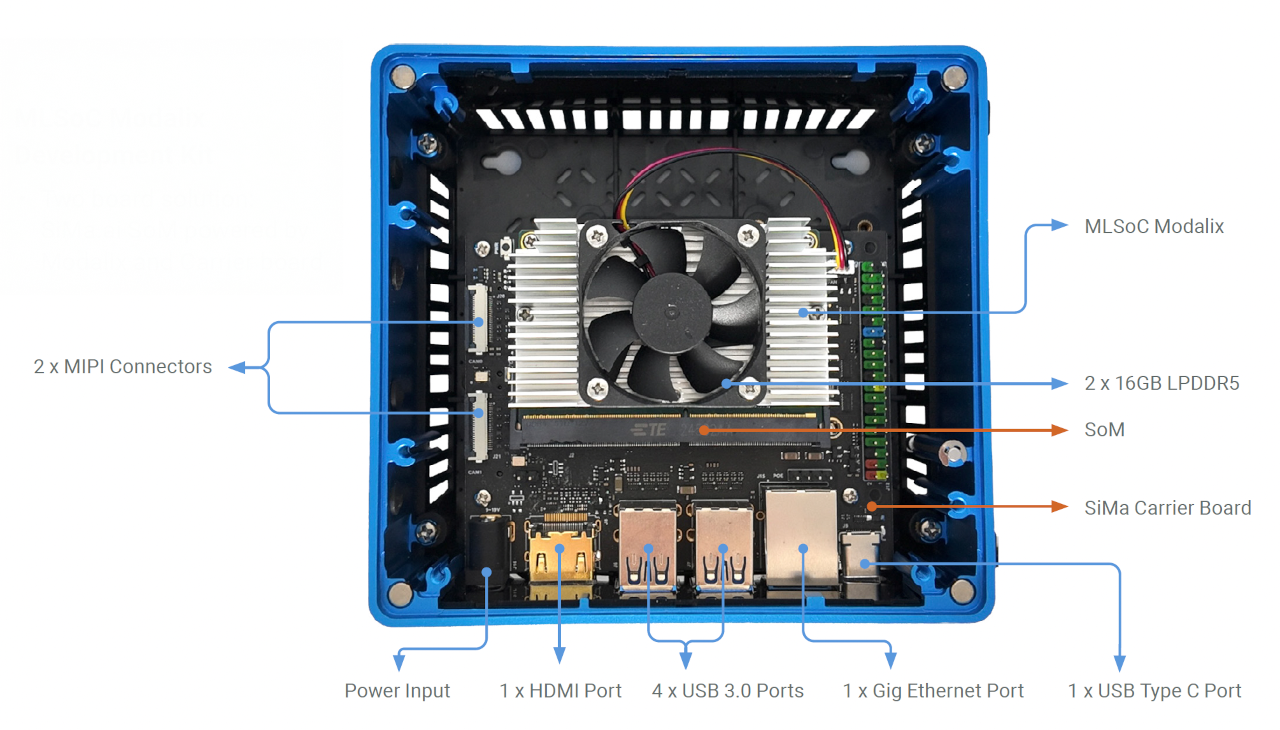
Use the included serial cable to connect the DevKit to your computer:
- DevKit end: use the provided USB-A to USB-C cable to connect to the DevKit's UART port, as labeled on the enclosure.
- Computer end: connect to a USB Type-A port. Use a USB hub if necessary.
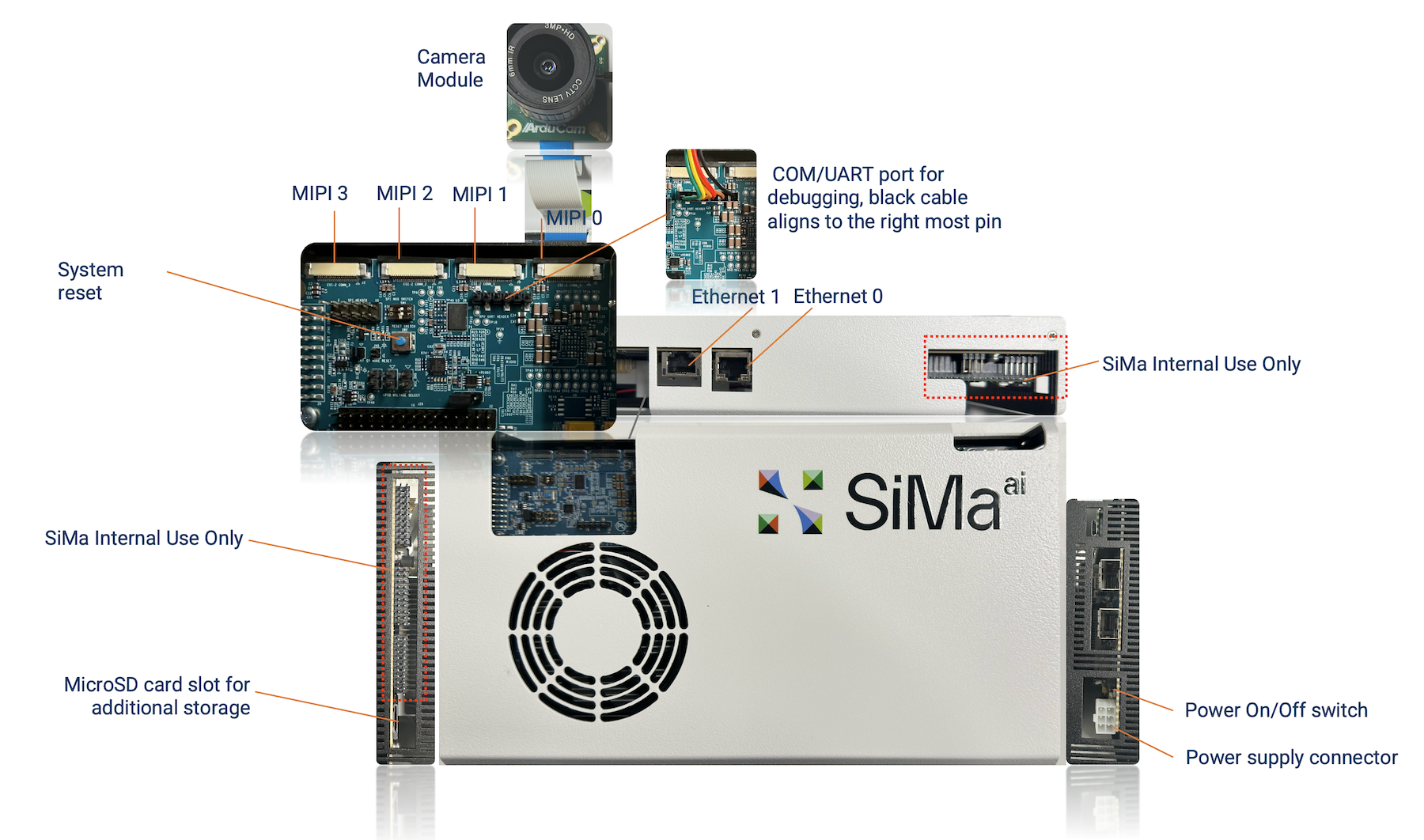
Use the included serial cable to connect the DevKit to your computer:
- DevKit end: ensure the triangle mark on the flat connector aligns with the rightmost pin on the DevKit.
- Computer end: connect to a USB Type-A port. Use a USB hub if necessary.
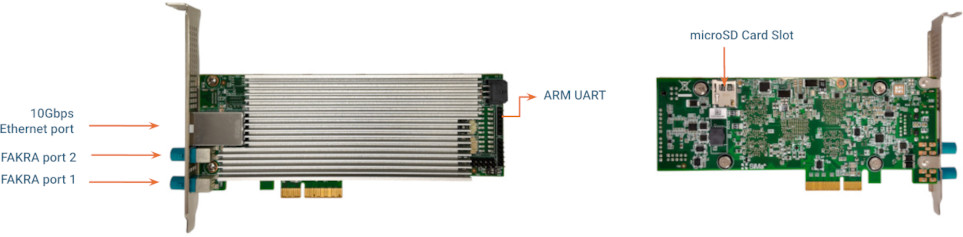
Use the included serial cable to connect the card to your host:
- Card end: use the provided USB-A to UART cable to connect to the card's ARM UART port, as shown in the image above.
- Host end: connect to a USB Type-A port. Use a USB hub if necessary.
Open a Serial Terminal
- macOS & Linux
- Windows
- Web Serial Console
Please install or upgrade sima-cli before continuing. This guide is intended for use with the latest sima-cli version.
Use sima-cli serial on macOS or Linux to connect to the serial port.
sima-cli serial
This command installs the dependencies needed to access the serial port. To exit the serial terminal, press Ctrl + A, then Ctrl + X.
On some earlier firmware versions, the system may use a different baud rate for the serial console. If you see garbled output in the terminal, it's likely due to a mismatched baud rate. Try specifying a higher rate:
sima-cli serial -b 921600
To connect to the DevKit from Windows, follow these steps:
-
Identify the COM port:
- Open Device Manager → Expand Ports (COM & LPT).
- Look for an entry like USB Serial Port (COMx).
-
Install and open a serial terminal:
- Use PuTTY or Tera Term.
- Set the connection type to Serial.
- Enter the correct COM Port (e.g.,
COM3). - Set Baud Rate to
115200.
-
Click Open to start the connection.
The Web Serial Console is a browser-based alternative that requires no local install. Open it in a Chromium browser, connect the DevKit via USB, and connect to the serial console.
Launch Web Serial ConsoleSee the full Web Serial Console page for the command-palette reference, multi-device support, and troubleshooting.
When the serial console prompts you to log in, use the default username sima and password edgeai.